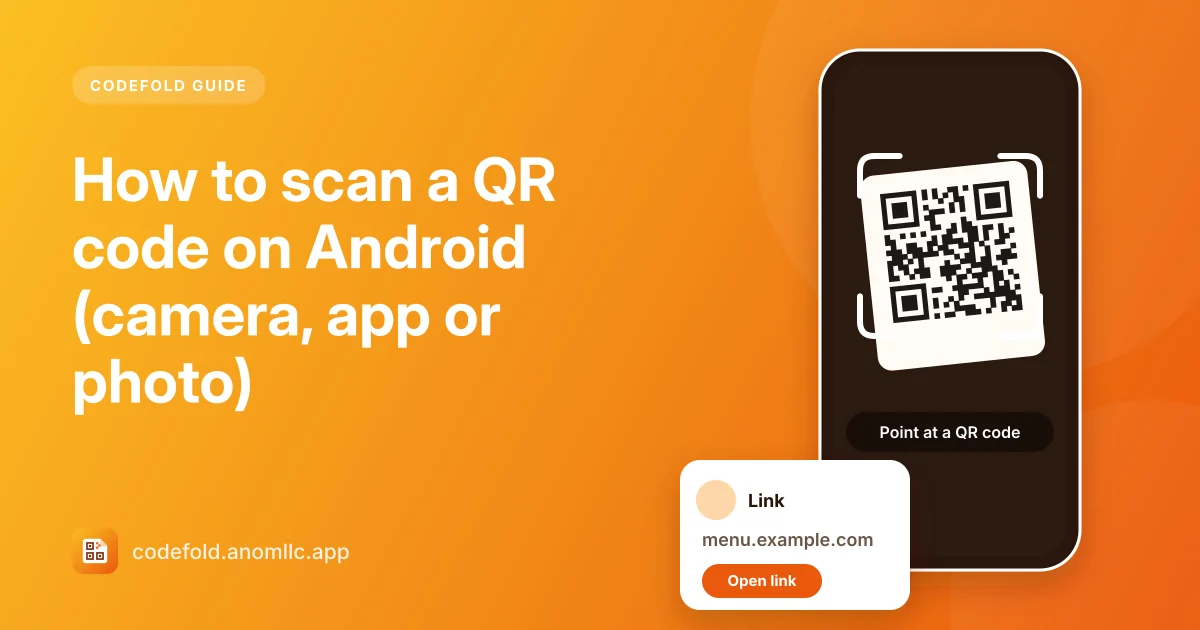
To scan a QR code on Android, open a scanner, point the camera at the code so it fits inside the frame, and hold still for a moment. The phone reads it in under a second and shows what's inside: a link, a Wi-Fi network, a contact or plain text. Here are the three ways to do it, and what to try when a code won't scan.
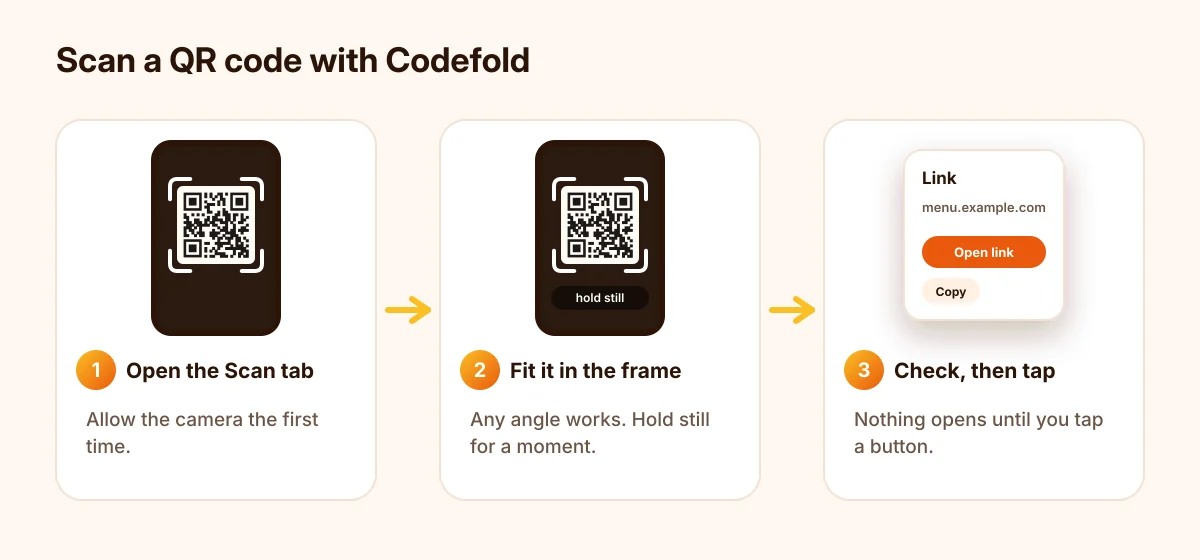
1. With a scanner app (Codefold)
- Open Codefold. It starts on the Scan tab. The first time, tap Allow camera.
- Point the camera at the code so it sits inside the white frame. It doesn't need to be straight; a slight angle is fine.
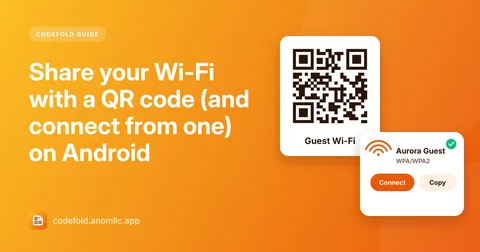
- Read the result. Codefold shows what the code contains and the buttons that fit it: Open link, Connect for Wi-Fi, Add to contacts, Call and so on.
- Tap what you want to do. Nothing happens by itself. A link shows its website's address first, so you can check it.
Every scan is kept in History on your phone, so you can find a code again later. Tap the star to keep the important ones at hand.
2. With the phone's camera app
Many Android camera apps can read QR codes too: open the camera, point it at the code and tap the link or banner that appears. If nothing appears, the option may be off in the camera's settings (look for "Scan QR codes" or "Google Lens suggestions"), or your camera app may not support it. A scanner app also reads barcodes, keeps a history and works the same way on every phone.
3. From a photo or screenshot
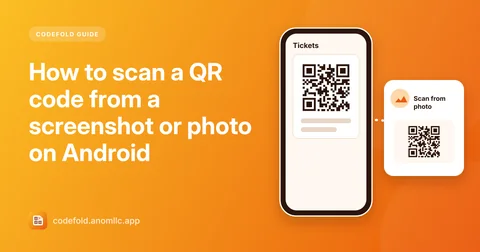
If the code is in a picture (a screenshot of a ticket, a photo someone sent you), you don't need a second phone. In Codefold, tap Scan from photo and pick the picture. You can also share the picture to Codefold from your gallery or a chat. See how to scan a QR code from a screenshot for the details.
When a QR code won't scan
- Too dark? Tap Turn on flashlight at the bottom of the Scan screen.
- Too small or far away? Use the zoom slider instead of moving closer; most phones can't focus closer than about 10 cm.
- Blurry? Hold still for a second, and wipe the camera lens.
- Glare or reflections? Tilt the phone a little so the light doesn't bounce straight back.
- Code on a screen? Lower your screen's brightness or move back a bit; very bright screens can wash out the code.
- Damaged or cut off? Every corner square must be visible. QR codes can survive some damage, but not a missing corner.
Barcodes work the same way
Point the camera at a barcode on a product, a book or a parcel label the same way. Codefold reads EAN, UPC, Code 128 and other common barcodes and offers Search the web for the number, so you can look the product up.
Before you tap a link
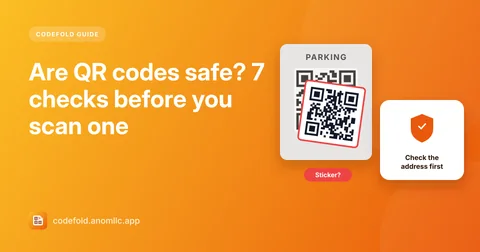
QR codes are an easy way to hide a web address, and fake codes stuck on top of real ones are a known scam. Before you tap Open link, read the address Codefold shows: is it the company you expect? Read our QR code safety checklist before scanning codes in public places.