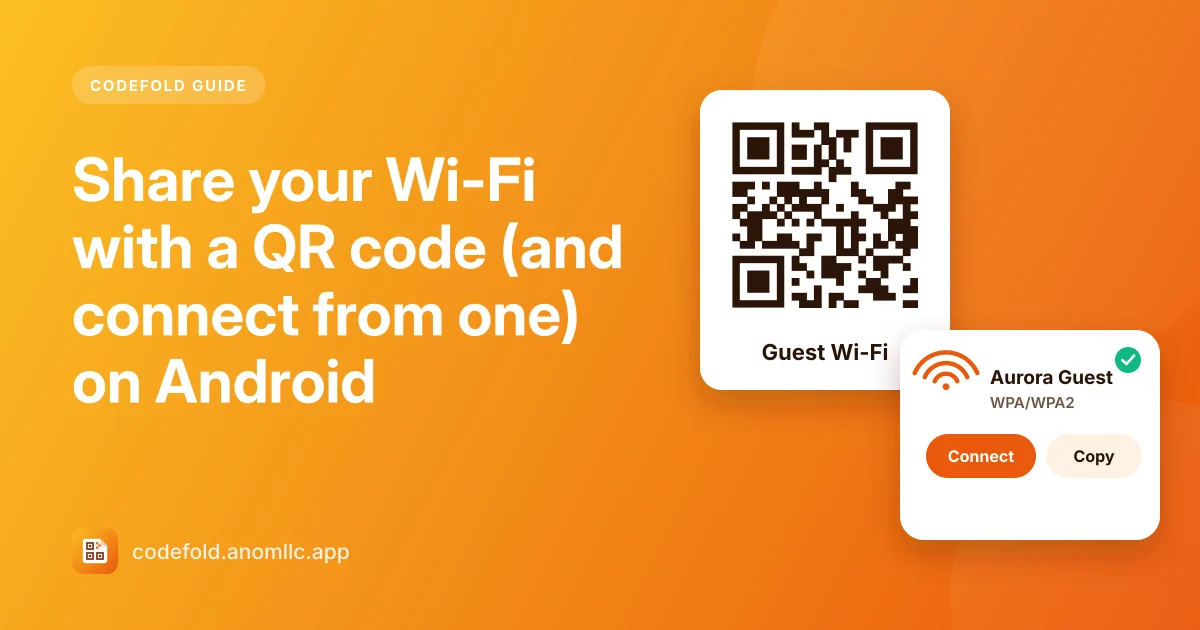
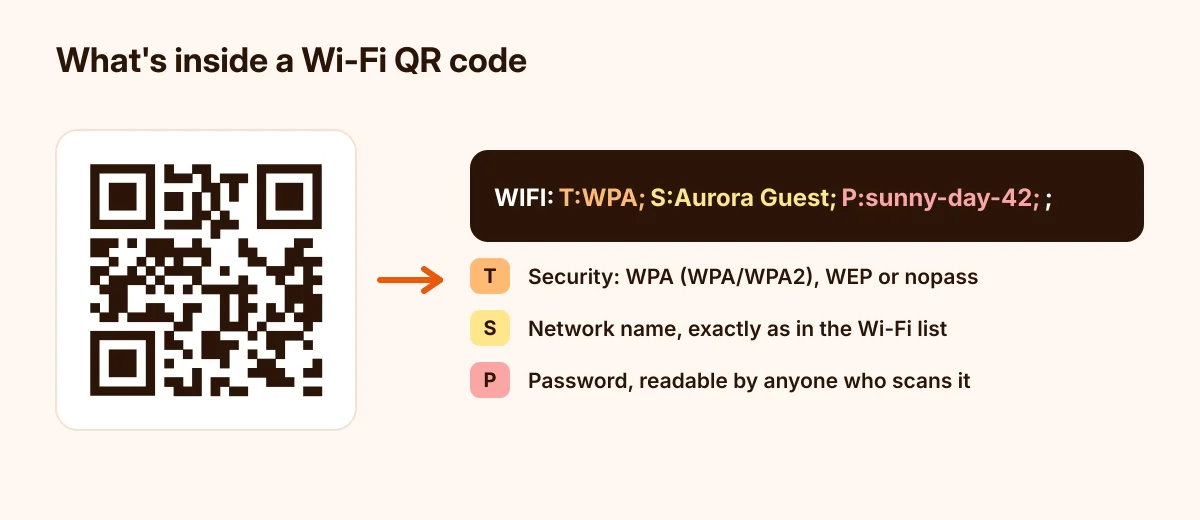
A Wi-Fi QR code holds your network's name and password, so guests can join by scanning instead of typing a long password. You can make one in a minute, print it for a café table or a guest room, and connect from one with a single tap on Android 11 and newer.
Connect to Wi-Fi from a QR code
- Scan the code in Codefold's Scan tab.
- Codefold shows the Network, the Password and the Security type.
- Tap Connect. On Android 11 and newer, your phone asks whether to save the network; tap Save, and it joins when the network is in range.
- On older phones, tap Copy password, then Open Wi-Fi settings, pick the network and paste the password.
If Connect isn't shown, the network is open (no password) or uses older WEP security: tap Open Wi-Fi settings and choose it there.
Make a QR code for your own Wi-Fi
- Open the Create tab and choose Wi-Fi.
- Type the Network name exactly as it appears in your phone's Wi-Fi list (capital letters and spaces matter).
- Type the Password and choose the Security type: WPA/WPA2 for almost every home router.
- Tick Hidden network only if your network doesn't appear in the Wi-Fi list.
- Tap Create QR code, then Save to gallery to keep or print it, or Share to send it.
Test it before you print it: scan it with another phone and check that it connects.
Where to find your network name and password
- On the router's sticker, often labelled SSID (the name) and Key, WPA key or Password, if you never changed them.
- On a phone that's already connected: in many Android phones, open Settings > Network & internet > Internet (or Wi-Fi), tap the network, then Share. After unlocking, the phone shows its own QR code and, on many models, the password under it.
Keep it safe
- A Wi-Fi QR code is your password. Anyone who scans it, or a photo of it, can read the password in plain text. Put it where only your guests can see it.
- Use a guest network for visitors if your router has one, and print that code instead of your main network's.
- Changed the password? Make a new code; the old one stops working.
Why phones ask before saving
Android doesn't let apps join networks silently. When you tap Connect, the system shows its own prompt, so you always decide which networks your phone saves. You can remove a saved network any time in the Wi-Fi settings.
More on scanning: how to scan a QR code on Android.